If films on your TCL 6-Series R655 look like live video, try switching Action Smoothing off on the source where you see it. TCL calls this the motion-processing control that can make movement look unnaturally smooth. The R655 guide says individual picture adjustments are saved for the active input and picture mode. TCL R655 user guide
Turn it off during the show that looks wrong
- Start playing a film or show on the affected source, such as your HDMI streamer or a Roku app.
- Press the Star button on the Roku remote. Open the picture settings menu and find Action Smoothing if the selected mode exposes it.
- Set Action Smoothing to Off. Play the same short scene again, ideally one with a slow camera pan.
- Check another source or the next picture mode where you notice the same effect. HDR and standard video can use different modes, so check the active mode before repeating the change. TCL Roku TV motion troubleshooting
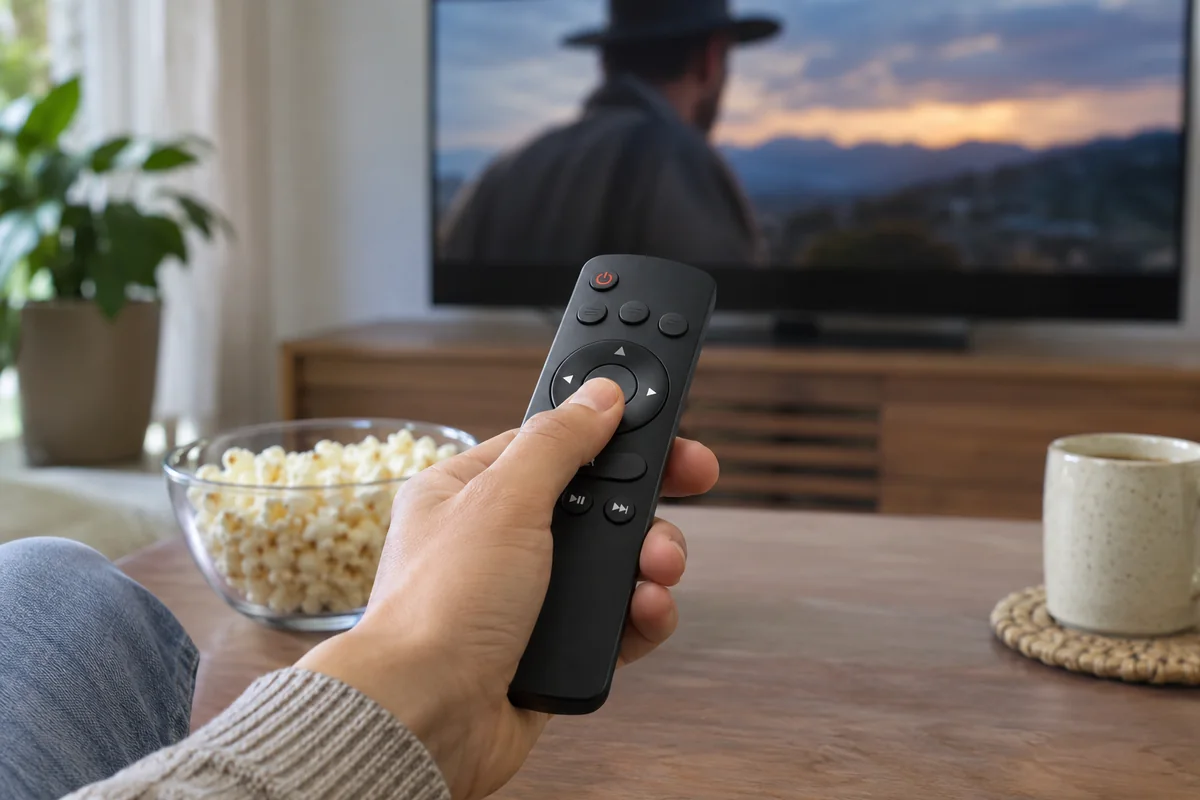
AI-generated editorial illustration.
Keep nearby controls separate
The R655 guide describes Natural Cinema, Action Clarity and LED Motion Clarity separately on compatible modes. Start by changing Action Smoothing alone so you can judge its effect. If you cannot find it, open the menu while the content is playing and check whether the input is in Game mode or another mode with fewer processing controls. Leave gaming settings as you prefer and make your movie changes during movie playback.